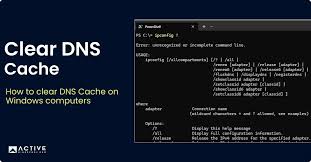
Internet browsing depends on many background systems working together to connect users with websites and online services. One important system involved in this process is DNS, which stands for Domain Name System. Many users search for how to flush dns when websites stop loading properly, internet connections become unstable, or outdated website information remains cached on a device.
DNS works like the internet’s phonebook by converting website names into IP addresses that computers can understand. Devices store DNS information temporarily to speed up browsing. However, outdated or corrupted DNS cache files can sometimes create connection problems.
Flushing DNS removes old cache data and forces the device to request updated information from DNS servers. This process is commonly used for troubleshooting internet and website access issues.
What Is DNS?
Before understanding how to flush dns, it helps to understand how DNS works.
DNS stands for Domain Name System. When a user types a website address such as Google into a browser, DNS translates that human-readable domain name into a numerical IP address.
Without DNS, users would need to memorize long strings of numbers for every website they visit.
DNS servers help devices locate websites quickly and efficiently. To improve speed, operating systems temporarily store DNS records in a local cache.
This cache helps websites load faster during future visits.
Why People Flush DNS
There are several reasons why users search for how to flush dns.
Fix Website Loading Problems
Sometimes websites fail to load because old DNS information remains stored in the cache.
Update DNS Changes
If a website changes servers or IP addresses, flushing DNS helps retrieve updated information.
Improve Troubleshooting
Flushing DNS is often one of the first troubleshooting steps for internet connection issues.
Remove Corrupted Cache Data
Damaged or outdated DNS records can create browsing errors.
Improve Privacy
Clearing cached DNS information removes stored website lookup history from the device.
These reasons make DNS flushing a common technical support solution.
How DNS Cache Works
Understanding DNS cache behavior is important when learning how to flush dns.
Every time a device visits a website, the operating system stores DNS lookup information temporarily. This helps avoid repeatedly contacting DNS servers for the same websites.
While caching improves speed, problems may occur if:
- DNS records become outdated
- Websites change hosting providers
- Internet settings change
- Corrupted cache data appears
In these situations, flushing DNS forces the computer to request fresh DNS information from servers.
How to Flush DNS on Windows
Many users searching how to flush dns use Windows computers.
The process is simple:
Step 1: Open Command Prompt
Search for “Command Prompt” in the Windows search bar.
Step 2: Run as Administrator
Right-click and choose “Run as administrator.”
Step 3: Enter the Flush DNS Command
Type the following command:
ipconfig /flushdnsStep 4: Press Enter
Windows will display a message confirming that the DNS Resolver Cache has been successfully flushed.
This process usually takes only a few seconds.
How to Flush DNS on macOS
Mac users also frequently search for how to flush dns.
The process depends slightly on the macOS version, but generally involves using the Terminal application.
Step 1: Open Terminal
Launch the Terminal app from Applications or Spotlight Search.
Step 2: Enter the Flush Command
Common macOS command example:
sudo dscacheutil -flushcache; sudo killall -HUP mDNSResponderStep 3: Enter Password
The system may request the administrator password.
After completing the command, the DNS cache will be cleared.
How to Flush DNS on Linux
Linux users searching how to flush dns may use different methods depending on the Linux distribution and DNS service configuration.
Some systems use:
sudo systemd-resolve --flush-cachesOthers may restart DNS services directly.
Linux DNS management varies more than Windows or macOS systems because Linux distributions use different networking tools and DNS services.
How to Flush DNS on Browsers
Some browsers also maintain their own DNS cache.
For example, users searching how to flush dns on browsers like Google Chrome may clear browser DNS separately.
Chrome users can access:
chrome://net-internals/#dnsThis page allows users to clear the browser’s internal DNS cache.
Browser-level DNS clearing can help solve website loading issues without restarting the computer.
Benefits of Flushing DNS
There are several advantages to learning how to flush dns.
Faster Troubleshooting
DNS flushing quickly helps identify whether cache problems are causing website errors.
Updated Website Information
Users receive fresh DNS records from servers.
Better Security
Clearing old DNS entries may reduce certain cache-related issues.
Improved Connectivity
Some network errors disappear after refreshing DNS information.
Privacy Improvements
Flushing removes local records of recently visited domains from the DNS cache.
These benefits make DNS flushing a useful maintenance task for internet users.
Common DNS Errors
People searching how to flush dns often experience specific internet issues.
Common DNS-related problems include:
- Website not found errors
- DNS server unavailable messages
- Slow website loading
- Incorrect website redirection
- Internet connection failures
Flushing DNS may help solve some of these problems quickly.
However, persistent issues may also involve routers, internet providers, firewalls, or DNS server settings.
Future of DNS Technology
The future of DNS technology continues evolving with improved security and privacy systems.
Technologies such as:
- DNS over HTTPS (DoH)
- DNS over TLS (DoT)
- Encrypted DNS services
are becoming increasingly common.
Major technology companies such as Cloudflare and Google continue developing faster and more secure DNS infrastructure.
These improvements aim to enhance internet speed, privacy, and cybersecurity.
Conclusion
In conclusion, understanding how to flush dns is useful for troubleshooting internet and website connection problems. DNS cache helps improve browsing speed, but outdated or corrupted records can sometimes create connectivity issues.
Flushing DNS removes old cached information and forces the system to retrieve updated website records from DNS servers.
Whether using Windows, macOS, Linux, or modern web browsers, DNS flushing remains a simple but effective tool for maintaining smoother internet performance and resolving common network issues.